I made this widget at MyFlashFetish.com.

Jumaat, 11 Mac 2011

COMPUTER CRIME

What is computer crime?

A computer crime is any illegal action where the data on a computer is accessed without permission. This access doesn't have to result in loss of data or even data modifications.
Computer crime is often attributed to rogue hackers and crackers, but increasingly organized crime groups have realized the relative ease of stealing data with relative low-level of risk. Government organizations are also rumored to be involved with hacking in to computer systems.

According to Great Britain's University of Wolverhampton, computer crime is broadly defined as "a criminal act that has been committed using a computer as the principal tool." These crimes take various forms but often involve some type of theft.

NEW CRIMES IN CYBERSPACE

There are three major classes of criminal activity with computers:

  • Authorized use of a computer, which might involve stealing a user name and password, or might involve accessing the victim's computer via the Internet through a backdoor operated by a Trojan Horse program
  •  
  • Creating or releasing a malicious computer program such as computer virus, worm, and Trojan Horse 

  • Harassment and stalking in cyberspace

UNAUTHORIZED USE

Unauthorized use of computers tends generally takes the following forms:
  • Computer voyeur - The criminal reads (or copies) confidential or proprietary information, but data is neither deleted nor changed. 

  • Changing data  - For example, change a grade on a school transcript, add "money" to a checking account, etc. Unauthorized changing of data is generally a fraudulent act. 
  •  
  • Deleting data - Deleting entire files could be an act of vandalism or sabotage. 

  • Denying service to authorized users - On a modern time-sharing computer, any user takes some time and disk space, which is then not available to other users. 

What is a denial-of-service (DoS) attack?

In a denial-of-service (DoS) attack, an attacker attempts to prevent legitimate users from accessing information or services. 

By targeting your computer and its network connection, or the computers and network of the sites you are trying to use, an attacker may be able to prevent you from accessing email, websites, online accounts such as banking and etc or other services that rely on the affected computer. 


The most common and obvious type of DoS attack occurs when an attacker "floods" a network with information. When you type a URL for a particular website into your browser, you are sending a request to that site's computer server to view the page. 
The server can only process a certain number of requests at once, so if an attacker overloads the server with requests, it can't process your request. This is a "denial of service" because you can't access that site. 

An attacker can use spam email messages to launch a similar attack on your email account. Whether you have an email account supplied by your employer or one available through a free service such as Yahoo or Hotmail, you are assigned a specific quota, which limits the amount of data you can have in your account at any given time. By sending many, or large, email messages to the account, an attacker can consume your quota, preventing you from receiving legitimate messages. 

What is a distributed denial-of-service (DDoS) attack?

In a distributed denial-of-service (DDoS) attack, an attacker may use your computer to attack another computer. By taking advantage of security vulnerabilities or weaknesses, an attacker could take control of your computer. He or she could then force your computer to send huge amounts of data to a website or send spam to particular email addresses. The attack is "distributed" because the attacker is using multiple computers, including yours, to launch the denial-of-service attack.

How do you avoid being part of the problem?

Unfortunately, there are no effective ways to prevent being the victim of a DoS or DDoS attack, but there are steps you can take to reduce the likelihood that an attacker will use your computer to attack other computers:
  • Install and maintain anti-virus software
  •  
  • Install a firewall, and configure it to restrict traffic coming into and leaving your computer
  •  
  • Follow good security practices for distributing your email address. Applying email filters may help you manage unwanted traffic

How a "denial of service" attack works?
 
In a typical connection, the user sends a message asking the server to authenticate it. The server returns the authentication approval to the user. The user acknowledges this approval and then is allowed onto the server.

In a denial of service attack, the user sends several authentication requests to the server, filling it up. All requests have false return addresses, so the server can't find the user when it tries to send the authentication approval. 

The server waits, sometimes more than a minute, before closing the connection. When it does close the connection, the attacker sends a new batch of forged requests, and the process begins again--tying up the service indefinitely.


Typical connection


"Denial of service" attack


How to block a "denial of service" attack?

 
One of the more common methods of blocking a "denial of service" attack is to set up a filter, or "sniffer," on a network before a stream of information reaches a site's Web servers. 

The filter can look for attacks by noticing patterns or identifiers contained in the information. 

If a pattern comes in frequently, the filter can be instructed to block messages containing that pattern, protecting the Web servers from having their lines tied up.


Malicious software 

Malicious software (malware) is a designed to secretly access a computer system without the owner's informed consent. Viruses, worms, Trojans, spyware and rootkits are all forms of malicious software. In general, malicious software may:

  • Display unwanted advertising banners on web sites or in pop-up windows
  •  
  • Delete, damage or modify your documents and data files
  •  
  • Attempt to reproduce itself automatically and secretly
  •  
  • Modify the operating system or other legitimate software
  •  
  • Allow malicious individuals to monitor your computer remotely over the network
  •  
  • Spread itself to other computers via the network, such as by e-mail, unsecured file shares, password guessing or exploiting security problems on other computers
When malicious software carries some specific traits, computer professionals may give it a special name, such as: 


  • Viruses: copy themselves into other legitimate programs, turning the innocent software into carriers of the virus
  •  
  • Worms: take advantage of operating system bugs and other security problems to copy themselves - usually silently and automatically - to other computers on a network.
  •  
  • Trojans or Trojan Horses: masquerade as legitimate software but engage in various kits of malicious activity.
  •  
  • Rootkits: modify the operating system to hide themselves, then use worm-like methods to propagate to other computers.
  •  
  • Spyware: sends information about the computer, your personal information or your Internet browsing activities to a third party.
  •  
  • Adware: displays unwanted advertisements.


How to Report Cyber Crimes

The age of computers has opened up numerous possibilities. We can connect with others across the globe in seconds with a few simple keystrokes. 

However, these advancements have lead to a string of new types of crimes. Cyber crimes can include anything from spam to serious charges of child pornography and weapons trafficking. If you are aware of a cyber crime, it is your duty to report it. Read on to learn how to report cyber crimes.

Instructions

1    Get together as many details about the cyber crime as you can. The more information that you can give  the authorities, the more helpful you can be to the case.
2    Contact the Internet Crime Complaint Center. This center was developed with the help of the FBI and makes reporting cyber crimes an easier task.
3    Fill out the complaint form on the Internet Crime Complaint Center's website. After you fill out the form, you'll be e-mailed a case number. The matter will be investigated through the center and they will update you on the status.
4    Call your local police department. If you are unsure of whom exactly you should report the cyber crime to, give the police a call and get their advice. If it is a criminal matter, they'll likely handle it.
5    See if the cyber crime that you are reporting is a FBI matter. Local FBI offices usually handle cases of Internet harassment, Internet bomb threats and cases of Internet child pornography.


Tips & Warnings

  • Don't call the police about minor cyber crimes. They may not appreciate it if you call them about excessive spam in your inbox. Spam problems can usually be handled by your email provider

  • If you feel that you are in serious danger due to a cyber crime, call the police immediately or dial 911


Ahad, 6 Mac 2011

Communication and Networks


Data transmission include bandwidth and protocol.
       BANDWIDTH use to measure the capacity of the channel. Bandwidth can be categories to four part, that is :
  • 1.       Voice band
  • 2.       Medium band
  • 3.       Broadband
  • 4.       Baseband


 Broadband is widely used for Digital Subscriber Line (DSL), cable and satellite connection to the Interned. Several user can simultaneously use a single broadband connection for higher-speed data transfer. Most popular broadband in Malaysia are TMnet Streamyx, Maxis, Celcom, Digi and U-mobile. The latest one is P1 4G.

Let make comparison between all Malaysia broadband service provider. I try to rank it according to my experience and others friends experience by using different type of broadband provider.


First , DIGI
DiGi have great improvement. What can I see for last two year many using Celcom broadband. But starting end 2010 lot of student change to DiGi. DiGi offer value such as a low price and better speed just like other broadband was but they did a lot of improvements. They improve in consistency in speed, no contract anymore, subscribe and customer owned modem,etc.
Second , Celcom
For last time when people asking which the best broadband in Malaysia, they were say that Celcom. But not for now days, the values offered by Celcom are considered “old-fashioned” and the promotions are still radically not shown an big improvement. In certain time, you might find yourself trapped in the lost connection or somewhat unavailable service. You will also be surprise when you are paying the bill, they have lot of hidden charge that not been mansion. but Celcom separate location is still good, you still get the connection even in small village.

Third , TMnet Streamyx
Although there are too many promotions and advertisements, Streamyx fall down to number three. Reason why people like use Streamyx because they give free notebook and laptop. This cool, not all broadband provider can do so. Streamyx is a great companion when you are not traveling around a lot. It will become trouble for you to access it away from your home or wireless modem. As Streamyx is always consist of a few problems, that are mostly on inconsistency of internet speed and broad restrictions on your internet activities.
Fourth, Maxis
For me those using Maxis is those who don’t care about the value that they have to pay, as long as they can use the internet services that was enough. 

Whatever type of Broadband service provider that you use, make sure that you will get satisfaction and try to choose suitable broadband provider. 

For more information about Malaysia broadband, you can click these link to make your own comparison.
www.streamyx.tm
www.maxis.com.my
www.celcom.com.my/
www.digi.com.my


                               -DON'T FORGET TO PAY TOUR BROADBAND BILL !!!!! 


Sabtu, 5 Mac 2011

Secondary Storange


 digital versatile disc
 There are many type of secondary storage such as:
 external hard disc

 flash memory card
compact disc
USB drive

    internal hard disc
 Here's a brief explanation of primary and secondary storage devices: Primary and secondary Storage

One storage that I think that valuable to have is online service storage. Why you must use it?
Did ever lost a disk or your important files disappeared, if so you will know that why having backup system is important. Online storage services help you to backup of your file on the internet where they are safe and easily accessed. it protect your important files from natural disasters, from computer threats, from theft, being lost and other hazards. 

Let think, if you have to bring hard disk, USB drive or compact disc all the time and how if you lost these storage how you want to open your important file. Online storage services help you to make sharing easy and secure. You can access your files anytime and anywhere. You can access your files from any computer with an Internet connection. 

Online storage services offer remote access, public and private file sharing, scheduled backup and a drag-and-drop window. Also offer encrypted file transfer and password protection as security when storing data. With online storage services, you won't have to worry about constantly using up all the free space on your hard drive anymore. These services take this struggle online and allow you to store your data securely and get more storage space if you need it.

You can have online storage services like: (click this link for more information)
  1. SugarSync 
  2. OpenDrive 
  3. Mozy  
and  that will help you make an informed decision on which online storage service is right for you.    

This video will help you to know how to store your online file. WATCH OUT!


 So, what you waiting for. You should at least one online storage service to backup your file. You can try the trial version for free if you still confusion about this storage usage.

Ahad, 27 Februari 2011

INPUT AND OUTPUT


What Is an Input Device?

Any number of computer peripherals can be classified as input devices. An input device is simply something that is used to interact with, or provide data to, the computer, as opposed to an output device that displays data for the user. Everyone that has used a computer has also used an input device, such as a keyboard or mouse. Without input devices, there would be no way to interact with computers.
The most common input devices are the mouse and keyboard. However, joysticks, touch screens, webcams, and microphones are considered input devices as well. Some more exotic input devices that most people do not use on a daily basis are three-dimensional navigation devices. Some examples of this type of input device are mice that can point to 3D space, or punch card readers used in the early days of computing.

Types of Input Devices

Keyboards
The keyboard is the most common input device. It is almost unheard of for a computer to be without some form of keyboard, be it a full QWERTY keyboard or a smaller number pad, such as those found on a cell phone. It is possible to interact with most computers solely through the keyboard, without even a mouse, because they are usually the default input device. Touch screens may eventually overcome the keyboard as well, by providing an onscreen keyboard to save space.

Mice and other Pointing devices
Other than the keyboard, mice are the most common type of input device. Nearly every computer has one, and they make navigating the screen much easier than trying to use just a keyboard. Mice usually use a ball, light, or a laser to track movement. Similar peripherals, such as a touch screen or laptop's touch pad, trackballs, graphics tablets, and even joysticks are “pointing” input devices.
Touch screens are becoming an increasingly popular pointing device, and someday may replace mice altogether. Other forms of pointing devices, such as motion controllers on the Wii game console, may also reveal the direction of input devices in the future.


Audio/Video Input. Web cams and digital cameras can also be considered input devices. They provide visual data to the computer in the form of images and video. Some web cams can even be used as pointing devices by tracking the location of a person's hands or face. Microphones and digital musical instruments, such as midi keyboards, are audio input devices that provide the computer with audio data. Even an electric guitar, when hooked up to a computer, can be an input device.

A Brief History of Computer Mice

The Beginning of Computer Aided Pointing Devices (or Mice) - The Inventor of the Computer Mouse

The modern mouse, for the desktop computer, was not introduced until 1984 and came with the Apple Macintosh. However, this modern version had been preceded by a number of computer aided pointing devices dating back to the original trackball, invented in 1952. In 1963, the word mouse was coined with Douglas Engelbart's patent of an early pointing device that largely resembled our modern mechanical and optical mice. Engelbart was the inventor of the computer mouse and he called the device a mouse because the cord, coming out the back, resembled the same tail found on the animal. Finally, the modern mouse grew out of Engelbart's design when his original engineer, Bill English, developed the mechanical ball mouse in 1972 at Xerox. The mechanical ball mouse would go on to become the standard in personal computing.

Early Implementations of Mechanical Ball Mice

Although mice were being commercially sold as early as 1975 by The Mouse House, the first personal computer to come with a mouseApple Macintosh Plus Mouse was released in 1981 by Xerox. Since personal computing did not really catch on until the release of the Apple Macintosh in 1984, a lot of the credit for the pointing device ends up going to Apple. These early mice used a serial port to interface with a machine, only to be replaced by the, later ubiquitous and now extinct, rounded PS/2 port in 1987. Although there were multiple implementations, the typical mechanical ball mouse used a number of light beams to measure movement of the ball and provide accurate positioning information to the computer. Throughout this time the trackball remained a somewhat popular alternative to the mechanical ball mouse. By now, the trackball has all but disappeared.

Modern Optical Mice

One of the biggest annoyances of the classic mechanical ball mouse was that you would occasionally have to open up the back and clean all of the gross stuff from your desk or mouse pad off of the ball. This was fixed by the now ubiquitous optical mouse that used light-emitting diodes to detect surface movement instead of movement of a ball mechanism. Although this reduces the amount of surfaces that a mouse can be used on, the convenience is well worth the trade. With the move to modern optical mice also came the move to USB from PS/2 and eventually to the wireless Bluetooth protocol. Now, most any corded desktop peripheral uses a USB interface of some kind.

The Future of Pointing

Like all things computing, the way we interact with and accomplish work on our machines is under constant evolution. While the optical mouse reigns supreme for now, new devices like Microsoft's Kinect and the Wii Remote are changing the way we interact with computers. Although the Kinect and Wii Remote are still largely used for gaming, many have written third-party drivers for interfacing the devices with their computers for use as pointing and navigation devices. Even Microsoft admits that they want to produce some sort of personal computing device that uses the Kinect technology. Even further, with the move to touchscreen and tablet devices, the mouse is being replaced with simple touch menu navigation.

What is the Advantage of the Dvorak 

Keyboard?

According to Martin Helander and Prasad V. Prabhu, in their book “Handbook of human-computer interaction,” the principle upon which the Dvorak keyboard was “designed included assumptions such as: simple motions are easier to learn and perform… and that rhythmic motions are less fatiguing than erratic ones.” So, the Dvorak layout puts the most often used keys on the home row and organizes keys to provide a more rhythmic typing experience.

As a result of being designed on these assumptions, the DKL (Dvorak keyboard layout) is said to provide a more comfortable and natural typing experience, which tends to reduce incidence of repetitive strain injuries such as carpal tunnel syndrome.

Some staunch supporters also argue that the Dvorak layout actually increase the overall typing rate of the average
What is the advantage of the dvorak keyboard?
user while reducing finger motion and error rates far below what is possible on QWERTY keyboards. While that may or may not be the case for everyone, one thing is sure, Dvorak keyboard users generally report on experiencing greater levels of efficiency while using this keyboard.

The layout provides the following advantages:
  • A more rhythmic typing experience.
  • Less reaching for often used keys in adjacent rows.
  • Reduced incidence of repetitive strain injuries such as carpal tunnel syndrome.
  • Faster typing rates.
  • Less mistakes due to reduce finger stretches from the home row.

Logitech Wave Keyboard Review

Logitech Wave KeyboardIn terms of looks the Logitech Wave is fairly attractive with its gently undulating keys and generous curves. There is no denying this is a fairly sizable beast though and if you don’t have a decent amount of desk space you might find this keyboard a little too large. It is nearly 20 inches wide and just over 10 inches deep. It has three height positions so you can find the one most comfortable for you.
The keys are arranged in a wave pattern which corresponds to your finger length and the padded vinyl wrist rest is built in. There are plenty of extra keys arranged around the QWERTY set up and the body is a mixture of matt black and shiny black with a few gray keys and a gray Logitech logo at the bottom. The word Wave is carved into the Space Bar. Everything is clearly labeled and there are a couple of light up indicators to show when Num Lock and Caps Lock are on.
It isn’t the most attractive keyboard in the world, that would have to be the Logitech diNovo Edge, but it sure beats my old battered keyboard and there’s a lot more to the Logitech Wave than looks.

Tactile Feel

Logitech Wave Keyboard FloatingThis may be the most important factor when it comes to buying a new keyboard. It is vital that the keyboard you choose feels right. You want a satisfying tactile experience which makes typing at speed easy and unencumbered. The problem is it can be very tough to judge the feel of a keyboard until you have tried it out for a decent test period. A quick spin around the block doesn’t tell you enough. You need at least a few days to decide whether you like it or not.
The Logitech Wave is very comfortable to use. The clever undulating key design places keys at different heights according to the length of your fingers. The keys that are further away are higher so you never have to reach too far to hit them. It is very easy to type quickly with minimal mistakes. The vinyl wrist rest is also a welcome addition and I found that after using the Logitech Wave for around two weeks some wrist pain I had started to fear was permanent, simply evaporated.

What Is an Output Device? 

Output devices are pieces of computer hardware that allow a computer system to communicate information to a user or another system. This information can be in any form, and includes sound, images, and even tactile experiences. Output devices can usually only be used to send data from the computer; items called input devices allow users and other systems to send data to the computer. Computer output devices deliver data that has been processed by the computer to the user. There are a variety of devices that produce data in different forms including audio, visual and hard copy. Computer output devices are types of peripheral hardware connected to a computer, using cables or over a wireless network.

Types of Output Devices 

Monitor
The most common computer output device is the monitor or computer screen. Monitors create a visual display from processed data that users can view. They come in a variety of screen sizes and visual resolutions.There are two types of computer monitors, CRT and flat panel. CRT monitors use phosphorescent dots to create the pixels that make up display images. Flat panel monitors usually use LCD or plasma to create output. Light is passed through liquid crystals to create the pixels.All monitors rely on a video card that is located on the computer motherboard or in a special expansion slot. The video card processes the computer data into image details that the monitors can display.


16" I-Inc IK161ABB 720p Widescreen LED LCD Monitor

16" I-Inc IK161ABB 720p Widescreen LED LCD Monitor (Black) IK161ABB-PB-R

16" I-Inc IK161ABB 720p Widescreen LED LCD Monitor (Black) IK161ABB-PB-R

16" I-Inc IK161ABB 720p Widescreen LED LCD Monitor (Black) IK161ABB-PB-R
  
Printer
Printers produce a hard copy version of processed data such as documents and photographs. The computer sends the image data to the printer, which then physically recreates the image onto an object.
There are three types of computer printers: ink jet, laser and dot matrix. Inkjet printers spray tiny dots of ink on a surface to create an image. Laser printers use toner drums that roll through magnetized pigment and then transfer the pigment to a surface. Dot matrix printers use a print head to imbed images on a surface, using an ink ribbon. 

   Sharp UX-B750 Inkjet Fax Machine w/Built-in Telephone Handset - Print, Scan and Send Faxes

Sharp UX-B750 Inkjet Fax Machine w/Built-in Telephone Handset - Print, Scan and Send Faxes! UX-B750

Sharp UX-B750 Inkjet Fax Machine w/Built-in Telephone Handset - Print, Scan and Send Faxes! UX-B750

Sharp UX-B750 Inkjet Fax Machine w/Built-in Telephone Handset - Print, Scan and Send Faxes! UX-B750

Sharp UX-B750 Inkjet Fax Machine w/Built-in Telephone Handset - Print, Scan and Send Faxes! UX-B750
Lexmark X7550 USB2.0/PictBridge/ WirelessG Color Inkjet Scanner Copier Fax Photo Printer w/CardReader & 2.4"LCD 

Lexmark X7550 USB2.0/PictBridge/ WirelessG Color Inkjet Scanner Copier Fax Photo Printer w/CardReader & 2.4"LCD (No Ink) X7550-NO-INK-R

Lexmark X7550 USB2.0/PictBridge/ WirelessG Color Inkjet Scanner Copier Fax Photo Printer w/CardReader & 2.4"LCD (No Ink) X7550-NO-INK-R

Lexmark X7550 USB2.0/PictBridge/ WirelessG Color Inkjet Scanner Copier Fax Photo Printer w/CardReader & 2.4"LCD (No Ink) X7550-NO-INK-R

Lexmark X7550 USB2.0/PictBridge/ WirelessG Color Inkjet Scanner Copier Fax Photo Printer w/CardReader & 2.4"LCD (No Ink) X7550-NO-INK-R
  
Speakers/Headphones
Computers produce audio data that require output devices such as speakers and headphones to deliver the sound to the user. Audio data is created by the computer and then sent to the audio card, which is located in an expansion slot. The card translates the data into audio signals, which are sent to the audio output device.  

Portable Stereo Speaker w/USB & Built-In Rechargeable Battery for MP3 Players & Notebooks 

Portable Stereo Speaker w/USB & Built-In Rechargeable Battery for MP3 Players & Notebooks (Black Wood) LM-525

Portable Stereo Speaker w/USB & Built-In Rechargeable Battery for MP3 Players & Notebooks (Black Wood) LM-525

Portable Stereo Speaker w/USB & Built-In Rechargeable Battery for MP3 Players & Notebooks (Black Wood) LM-525

Mad Catz AirDrives Earloop Stereo Headphones w/Inline Microphone

Mad Catz AirDrives Earloop Stereo Headphones w/Inline Microphone/Volume Control, 3.5mm Jack & Carry Case (Black) INA099110

Mad Catz AirDrives Earloop Stereo Headphones w/Inline Microphone/Volume Control, 3.5mm Jack & Carry Case (Black) INA099110

Mad Catz AirDrives Earloop Stereo Headphones w/Inline Microphone/Volume Control, 3.5mm Jack & Carry Case (Black) INA099110
  
CD/DVD/Floppy Disc
CD, DVD and floppy disc are output devices that can also be used as storage and input devices. The computer sends data to the disc, where it is embedded and can be later retrieved.Compact disc, or CD, is an optical device that stores audio and visual data in a digital format. Data is placed on the disc, using a laser writer that embeds the data into the disc's coating.Digital Versatile Disc, or DVD, is an optical device that stores visual data in a media format. DVDs feature a dual coating system that allows audio and visual data to be written at the same time by using a laser.Floppy disc is a magnetic storage device. A layer of magnetized material is placed within a proactive plastic casing. The computer embeds the data into the magnetized material, using a writing head. 


Maxell 8x 4.7GB 120-Minute DVD+R Media 90-Pack w/DVD Cases

Maxell 8x 4.7GB 120-Minute DVD+R Media 90-Pack w/DVD Cases MAX-DVDPLUSR-8X-90PK

Maxell 8x 4.7GB 120-Minute DVD+R Media 90-Pack w/DVD Cases MAX-DVDPLUSR-8X-90PK

Maxell 8x 4.7GB 120-Minute DVD+R Media 90-Pack w/DVD Cases MAX-DVDPLUSR-8X-90PK

Projector
Projectors are display devices that project a computer created image. The computer sends the image data to the video card which then sends the video image to the projector. They are typically used for presentations or for viewing videos. 

Plotter
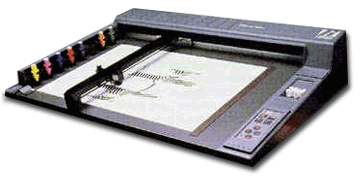
A plotter is an output device that is used to create presentation visuals, charts, graphs, tables and diagrams.Plotters create a hard copy rendition of a digitally rendered design. The design is sent to the plotter via a graphics card, and creates the design using a pen. Generally used with engineering applications, plotters basically draw an image using a series of straight lines. 

Plotter PlotterPlotterPlotter


A plotter consists of an arm that moves across the paper on which the diagram or graph needs to be drawn . 
.
In some plotters, the paper is held station ary while the arm and the pens move over it. This is called a flat-bed plotter. In the other type of plotter, the paper is wrapped around a drum and anchored at anchored at both ends. The drum rotates while the pen moves laterally along a fixed rail. This is called a drum plotter.
To draw clear and high-qualit diagrams, a plotter needs high-quality pens with special inks of different colors.
A plotter can be connected to a PC through the parallel port. A plotter is more software-dependent than any other peripheral, and needs much more instructions than printer for producing output.
Plotter are used in applications like CAD, which require high-quality graphics on paper. Many of the plotters now available in the market are desktop models that can be used with PCs. Businesses typically use plotters to present an alysis in terms (bar charts, graphs, diagrams, etc.) as well as for engineering drawings.
Flat-bed plotter
Flat-bed plotter